Losant MCP Server
The Losant MCP Server is a Model Context Protocol (MCP) server that provides AI assistants like Claude with secure access to your Losant account. It enables natural language interactions with your IoT applications, devices, workflows, and telemetry data.
You may connect to Losant's remote MCP server at https://mcp.losant.com/mcp, or you may run the server locally on your machine.
The Losant MCP Server is open-source and is available on GitHub at github.com/Losant/losant-mcp-server.
What is MCP?
The Model Context Protocol is an open standard that allows AI assistants to securely connect to external data sources and tools. MCP servers act as a bridge between AI models and your systems, enabling the AI to query data, execute operations, and provide contextual responses based on real-time information.
Getting Started
Connecting the Losant MCP server to your AI assistant of choice requires a couple simple steps.
Prerequisites
First, to use the Losant MCP Server, you will need:
- A Losant account (sign up for free at accounts.losant.com).
- An AI assistant that supports MCP (such as Claude Desktop).
- A User API Token with the desired scopes (only if running the server locally).
Connecting to the Remote Server
Most users will connect to the hosted instance of the MCP server, which is available at:
https://mcp.losant.com/mcp
How to connect an MCP server to your AI assistant varies; some provide dedicated user interfaces for configuring servers while others require editing text files.
For example, to connect the Losant MCP Server to Claude Desktop, you must add the following to the application's configuration file:
{
  "mcpServers": {
    "losant": {
      "url": "https://mcp.losant.com/mcp"
    }
  }
}
Authorization Through OAuth
Immediately after configuring the server, the assistant will redirect you to authorize the connection in an OAuth 2.0 flow, where you must grant the service access to your Losant account and optionally, your sandbox and any organizations you are a member of. Doing so creates an OAuth Token tying the service to your user account; at any time, you may revoke the authorization or modify the permissions the token may exercise on your behalf.
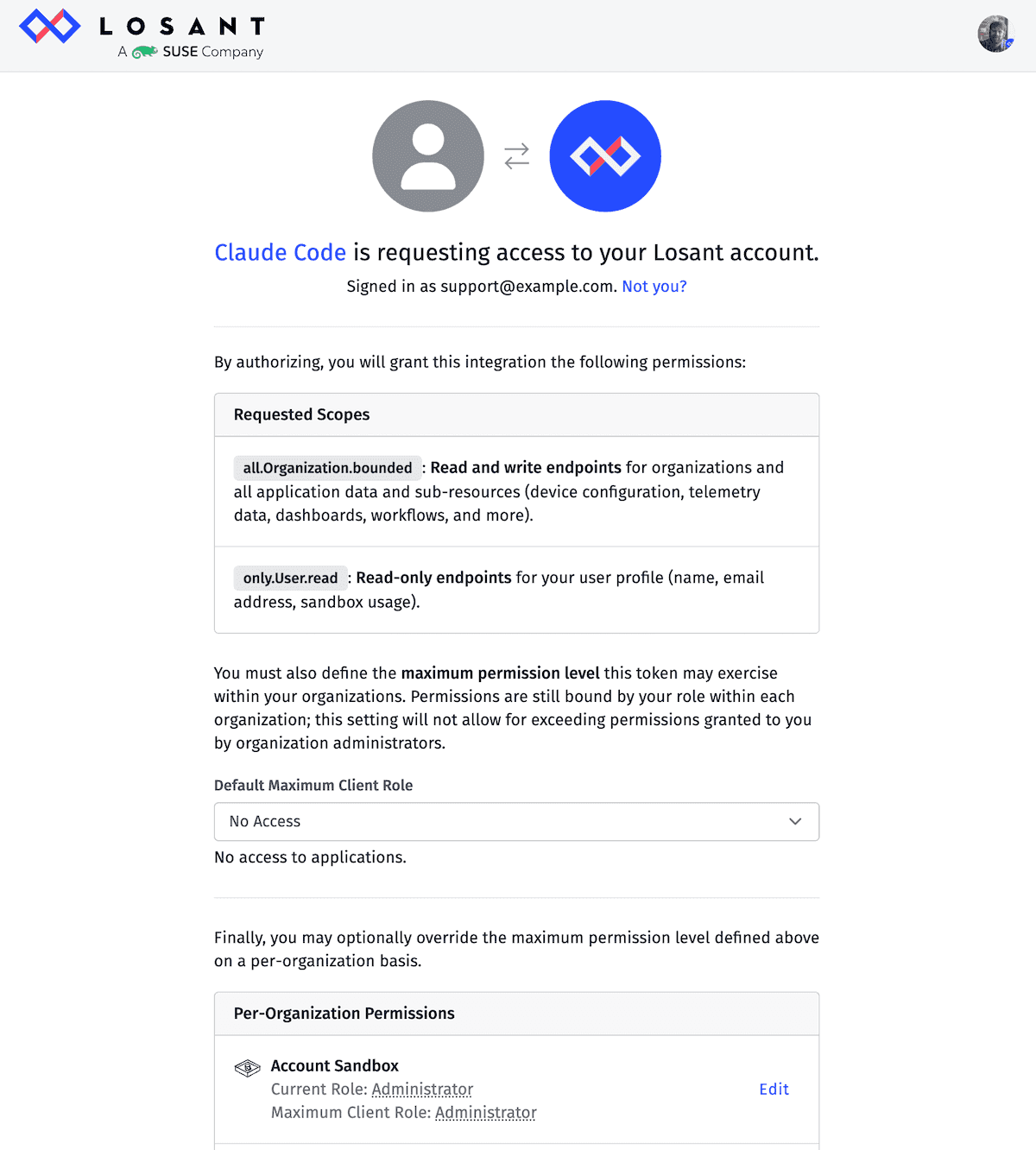
By default, the consent screen grants no permissions to organization applications and administrator permissions to sandbox applications. You may modify these settings before authorizing the connection.
Running as a Local Service
You may also run the Losant MCP server on your own machine instead of connecting to the remote server, which is useful for local development and testing. Details on running either in a container or from source are below.
Once it is running, the MCP server can be accessed at the URL:
http://localhost:3000/mcp
Connecting your local server to your AI assistant typically involves editing a configuration file to define the MCP server, any necessary credentials, and other runtime options. That configuration is handled when initially starting up the Losant MCP Server.
For example, to connect the server to Claude Desktop only requires adding the following to the application's configuration file:
{
  "mcpServers": {
    "losant": {
      "url": "http://localhost:3000/mcp"
    }
  }
}
Authorization Through a User Token
Running locally requires creating a User API Token (not to be confused with a User OAuth Token) scoped to the resources and API endpoints you would like to grant the AI assistant access to. This token is then provided to the MCP server for authorizing requests against your Losant applications.
Running a Container
The Losant MCP Server is available as a package on Docker Hub. You may pull the image using the following command:
docker pull losant/losant-mcp-server:latest
You can then run the service using the following command with the minimum required environment variables.
docker run -d \
  --name losant-mcp-server \
  -p 3000:3000 \
  -e LOSANT_API_TOKEN=<your-api-token> \
  losant/losant-mcp-server:latest
Running from Source
The Losant MCP Server is open-source and is available on GitHub. If you prefer to run the server from source code, you must have the following dependencies installed:
You may then clone the repo, install dependencies, add your environment configuration, and run the server:
git clone https://github.com/Losant/losant-mcp-server.git
cd losant-mcp-server
pnpm install
cp .env.example .env
# Edit .env and set LOSANT_API_TOKEN
pnpm start
Environment Variables
In most use cases, it is only necessary to set the LOSANT_API_TOKEN environment variable when running locally, the value of which is a User API Token used to authorize requests to your Losant account through the MCP server.
See the GitHub repository for the complete list of configuration options.
Verifying Server Health
To verify the server is running correctly, you can check the health endpoint:
curl http://localhost:3000/healthz
If healthy and ready to accept requests, the response will be:
{
  "ok": true,
  "server": "losant-mcp-server"
}
Available Tools
The Losant MCP Server exposes the following MCP tools for interacting with your IoT applications. Additional tools and skills will be added over time.
losant_query
This tool allows for querying Losant resource configuration, including applications, devices, workflows, data tables, and more.
Common Query Operations
- List resources with pagination, filtering, and sorting
- Get individual resource details by ID
- Filter by name patterns, tags, or custom queries
losant_timeseries
This tool allows for querying time-series device data, connection history, and command history.
Common Time Series Operations
timeSeriesQuery- Query historical data with aggregation (hourly average, daily max, etc.)lastValueQuery- Get the most recent reported valuesgetState- Get device state historygetCompositeState- Get composite device stategetCommand- Get device command historygetLogEntries- Get device log entries
losant_write
This tool allows for creating and updating Losant resources including device recipes, devices, workflows, data tables, dashboards, experiences and more. It supports the following operations:
createOne- Create a new resourceupdateOne- Update an existing resource by ID
losant_delete
This tool allows for deleting Losant resources by ID. It supports most resource types, with the following exceptions:
- Not supported due to sensitive data:
applicationKey,credential,applicationCertificate,applicationCertificateAuthority— these must be managed directly through the Losant platform. - Not supported:
applicationJobLog,edgeDeployment,embeddedDeployment— delete is not supported for these resource types.
losant_delete is a destructive action. We recommend configuring your AI agent to require explicit user confirmation before invoking this tool. Depending on your LLM client, you may be able to mark losant_delete as requiring approval so the agent must pause and ask before deleting anything.
Note that deleted devices will be visible in the Losant UI for 60 days after deletion under the Deleted Devices section.
Example Use Cases
Once connected, you can ask your AI assistant questions about or make changes to your Losant applications. For example ...
- Application Management
- "List all my Losant applications"
- "Show me details about the Smart Building application"
- "How many devices are in my Manufacturing application?"
- "In my application named Weather Reporter extract data from the tempest weather station API, once every 5 minutes, and store that data in a device, display this data on a dashboard, and then create a custom experience page to view that dashboard."
- Device Queries
- "Find all temperature sensors in Building A"
- "Show me devices that haven't reported in the last hour"
- "Get the current state of device XYZ"
- Time-Series Data
- "What was the average temperature in Building A yesterday?"
- "Show me humidity trends for the past week"
- "Get the last reported values for all my HVAC sensors"
- Workflow & Configuration
- "List all workflows in my application that use an AWS Lambda Node"
- "Make a POST request to my Data Ingestion webhook with a test JSON body"
- "What data tables exist in my Manufacturing application?"
- Creating & Updating Resources
- "Create a new webhook in my Smart Building application called 'motion-alerts'"
- "Read this CSV of device sensor IDs - for each one create a device using the device recipe motion-dector-recipe and add the sensor ID as a tag."
- "Add a new device to my Manufacturing application with tags site=plant1 and type=sensor"
- "Update the description of my Temperature Monitor workflow"
- "Create a new experience user with the email address user@example.com"
- "Read the instruction for this physical motion sensor device found at https://example.com/device-spec.html and create a device with suggested attributes"
- Deleting Resources
- "Delete the webhook named 'old-alerts' from my Smart Building application"
- "Remove the device with ID abc123 from my Manufacturing application"
- "Delete the dashboard named 'Prototype Dashboard' from my application"
Contributing & Support
The Losant MCP Server is open-source and is available at github.com/Losant/losant-mcp-server. Instructions on how to report bugs, submit feature requests, and contribute code - as well as additional information on running the server locally, including all environment variables - is available there.
If you discover a security vulnerability, do not use GitHub Issues. Instead, email hello@losant.com directly. See our security policy and responsible disclosure guidelines for more info.
The Losant MCP Server is released under the MIT License. See the LICENSE file for details.
Additional Resources
Was this page helpful?
Still looking for help? You can also search the Losant Forums or submit your question there.