GCP: BigQuery Node
The GCP: BigQuery Node allows a workflow to interact with Google BigQuery by fetching, creating, updating, or deleting data and optionally storing the result of the operation on the workflow payload.
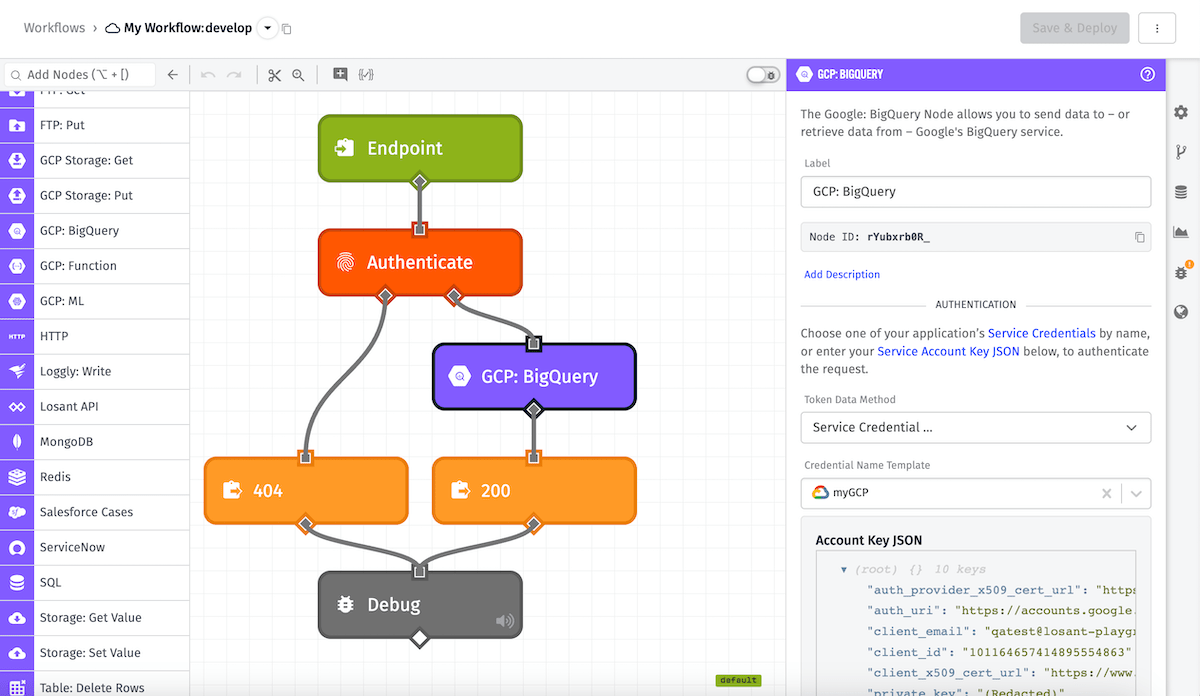
Configuration
Configuration for the node is broken up into four sections.
Authentication
First, we must enter our Google credentials.
- Token Data Method: A Google service account key is required for the workflow to authenticate with Google BigQuery. This may be supplied as either a Service Credential (Application and Experience workflows only), a JSON template, or a payload path.
The next configuration field will depend on the Token Data Method selected.
-
If you selected
Service Credentialas your Token Data Method, Credential Name Template can either be a string template that references your Service Credential name or you can select a Service Credential you have created for your application. -
If you selected
Direct input (JSON Template)as your Token Data Method, Account Key (JSON Template) can either be a JSON template that references your Google service account key or you may enter it directly. -
If you selected
Direct input (Payload Path)as your Token Data Method, Account Key Payload Path is a payload path that references your Google service account key.
The third configuration field appears for all Token Data Methods.
- Project ID Template: Can either be a string template that references your project ID, or it can be left blank to use the default project ID associated with your credential. Note: For Edge Workflows, this field is only available in GEA version 1.42.0 or higher.
Resource & Action
Choose a resource to edit and an action to take. Currently the node supports the following resources and actions:
Request Config
The available options here will change depending on the selected resource and action. For example, if the selected action creates or updates a resource then a request body is required that contains the new or updated resource. Some actions require a dataset ID, some require both a dataset ID and a table ID, and some require neither. There are also some options that are only relevant to a specific resource and action, such as the "include hidden datasets" option when "Datasets: List" is selected.
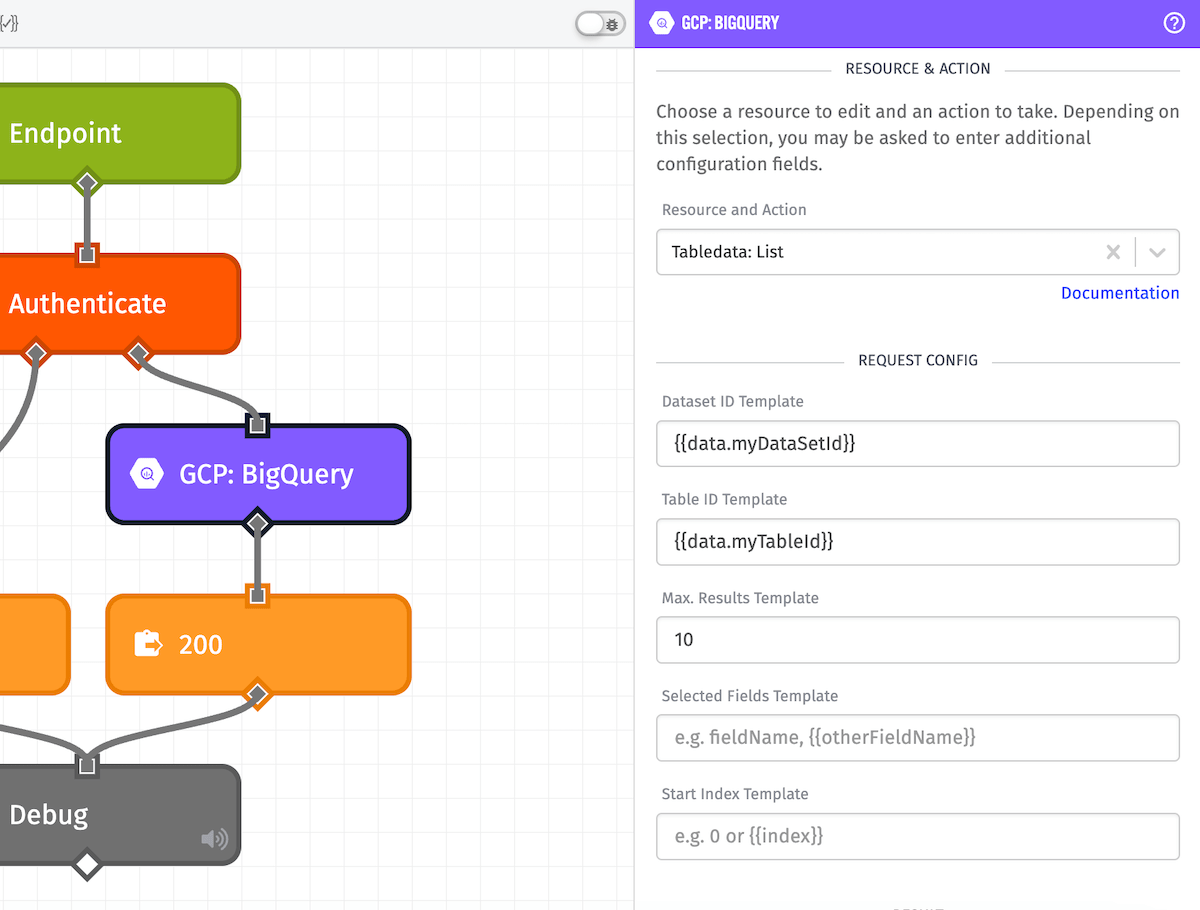
In the example above, the selected resource and action value is "Tabledata: List" and the relevant configuration is being shown.
Result
Specify a payload path at which to place the result of the operation. If the request succeeds but no result is returned by BigQuery (for example, when deleting a resource) the result will be { success: true }.
Query Request Format
The expected format for the Query Request JSON Template section depends on the selected Resource and Action value. Below you'll find example JSON templates for operations that require them.
Jobs: Query
Requests must match the structure outlined here. Properties that are marked as "[Output-only]" do not need to be included in the request (id, kind, etag, etc.) An example request is shown below:
{
  "maxResults": 10,
  "query": "SELECT * FROM [my_dataset.my_table] WHERE id = '{{data.recordId}}' LIMIT 10"
}
Datasets: Insert / Update / Patch
Requests must match the structure outlined here. Properties that are marked as "[Output-only]" do not need to be included in the request (id, kind, etag, etc.) An example request is shown below:
{
  "datasetReference": {
    "projectId": "my-project-id-1234",
    "datasetId": "my_dataset"
  },
  "friendlyName": "My dataset",
  "description": "A description of the dataset"
}
Tables: Insert / Update / Patch
Requests must match the structure outlined here. Properties that are marked as "[Output-only]" do not need to be included in the request (id, kind, etag, etc.) An example request is shown below:
{
  "tableReference": {
    "projectId": "my-project-id-1234",
    "datasetId": "my_dataset",
    "tableId": "my_table"
  },
  "friendlyName": "My table",
  "description": "A description of the table",
  "schema": {
    "fields": [
      {
        "name": "id",
        "type": "INTEGER",
        "mode": "REQUIRED",
        "description": "The record ID"
      },
      {
        "name": "created_on",
        "type": "DATETIME",
        "mode": "REQUIRED",
        "description": "The date & time when the record was created"
      },
      {
        "name": "is_public",
        "type": "BOOLEAN",
        "mode": "NULLABLE",
        "description": "Set to true if the record is public"
      }
    ]
  }
}
Tabledata: Insert All
Requests must match the structure outlined here. Properties that are marked as "[Output-only]" do not need to be included in the request (id, kind, etag, etc.) An example request is shown below:
{
  "rows": [
    {
      "json": {
        "id": 1,
        "created_on": "2018-01-17 15:36:22",
        "is_public": true
      }
    },
    {
      "json": {
        "id": {{data.recordId}},
        "created_on": "{{format data.recordCreatedOn 'YYYY-MM-DD HH:mm:ss'}}",
        "is_public": {{data.recordIsPublic}}
      }
    }
  ]
}
Note that the format of each key's value under "json" depends on the field type - in our example above, we're inserting data into the example table shown in the previous section, so id and is_public are not quoted because their types are INTEGER and BOOLEAN, respectively, while created_on is quoted.
Was this page helpful?
Still looking for help? You can also search the Losant Forums or submit your question there.