AWS S3: Put Node
The AWS S3: Put Node allows a workflow to upload a file into an S3 bucket.
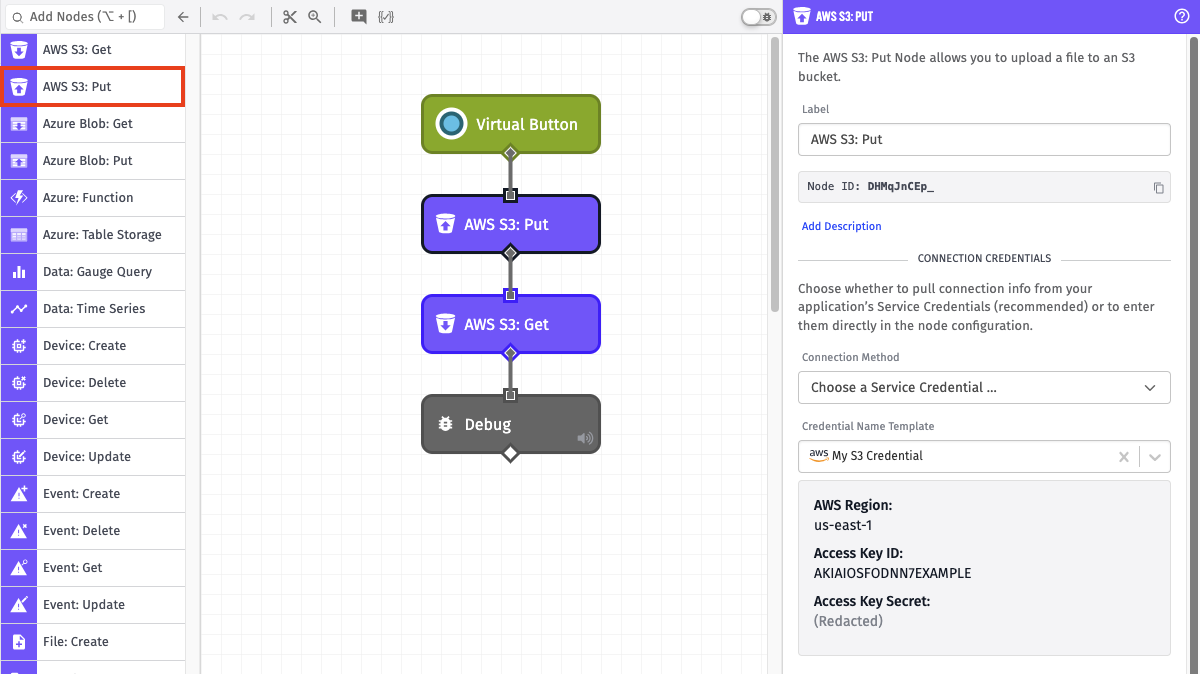
Node Properties
There are three main configuration sections for the AWS S3: Put Node ...
Credential Configuration
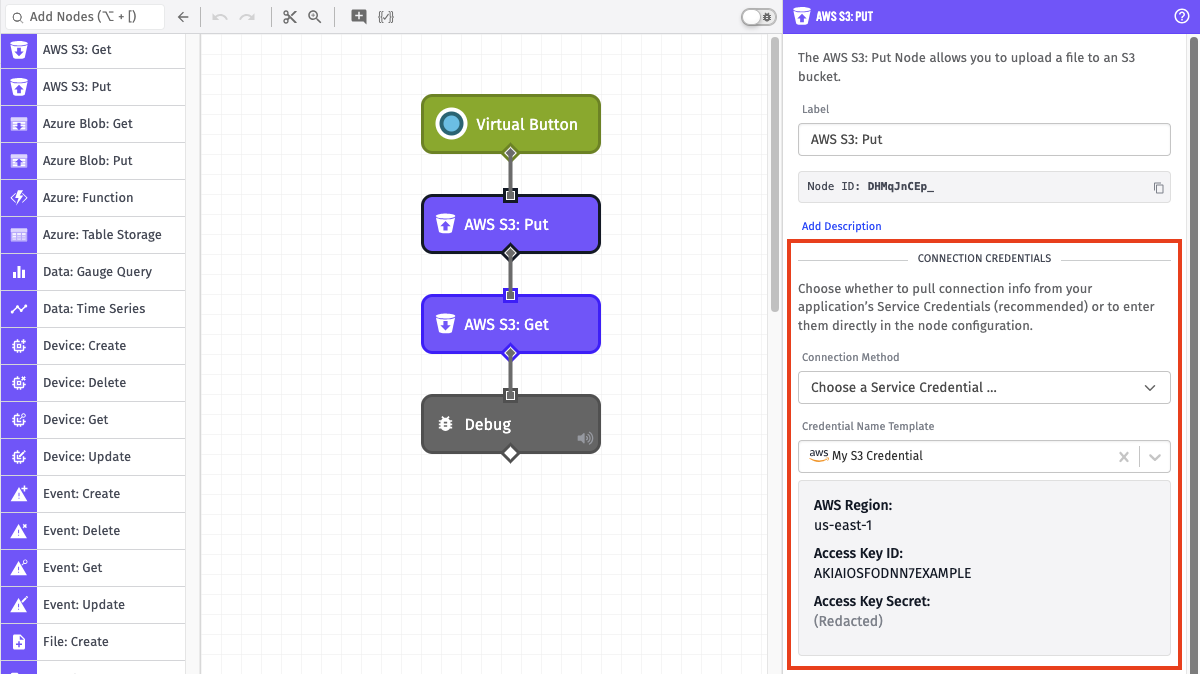
There are two options for configuring credentials:
- Choose a Service Credential: Retrieves your AWS credentials from the selected service credential.
- Credential Name Template: Choose which of your application's AWS service credentials you would like to use. Note: Service credentials are not accessible from Edge Workflows, so only direct configuration is available for them. This field is templatable.
- Enter Connection Info: Configure the AWS credentials directly within the node. All fields are required.
- AWS Region Template: The AWS region to connect to. This field is templatable.
- AWS Access Key ID Template: The AWS access key ID associated with the AWS account you wish to use. This field is templatable.
- AWS Secret Access Key Template: The AWS secret access key associated with the AWS account you wish to use. This field is templatable.
We recommend that you create an AWS Key/Secret pair specifically for use in the Workflow Engine - a key that only has access to the proper AWS S3 buckets. We also recommend that you store these values as service credentials.
AWS Permissions
In order to perform a put operation, the AWS user must have, at minimum, the following IAM Policy:
{
  "Version": "2012-10-17",
  "Statement": [
    {
      "Effect": "Allow",
      "Action": ["s3:PutObject"],
      "Resource": ["arn:aws:s3:::<bucket-name>/*"]
    }
  ]
}
File Configuration
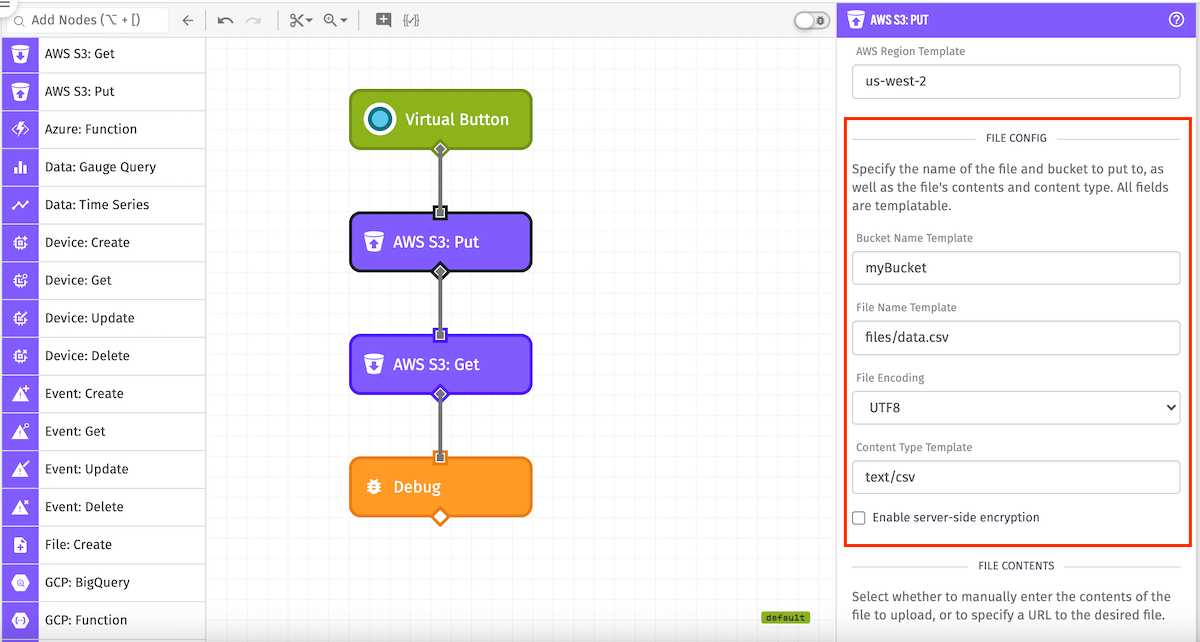
Next is to configure the fields required by S3. All applicable fields are templatable:
- Bucket Name Template: (Required) The S3 bucket to upload to.
- File Name Template: (Required) The name of the file to upload, including the extension. If you wish to upload the file to a subdirectory within the bucket, the path to the file should be included in this field. (e.g. "path/to/my/file.ext")
- Content Type Template: (Required) MIME type of the file being uploaded.
- Enable server-side encryption: Enables AES-256 encryption on the uploaded file. See docs.
File Contents
Choose an Input Mode for how to provide the content to upload. There are multiple options, each of which supports string templates ...
- File Content Template: If selected, enter the file contents directly. If left blank, your configured file will be uploaded without any content. A File Encoding field is also shown and defaults to UTF-8.
- File URL Template: If selected, enter a URL to a resource that is publicly available via an HTTP GET request. Losant will download the file and upload its content to the S3 bucket. This option is useful, for example, when using the Temporary URL Output option in a notebook. Note: For Edge Workflows, the ability to upload via URL is only available in GEA version 1.23.0 or higher.
- Local File Path Template: In edge workflows running GEA version 2.0.0 and higher, you can upload a file from the edge device's file system. If selected, specify a path to a file that has been mounted into the agent's Docker container. A File Encoding field is also shown and defaults to UTF-8.
Result Path

The success or failure of the operation can optionally be placed at the specified payload path. If the operation fails, the result object will contain an error key in addition to the success state.
Node Example
The following is an example of a successful operation:
{
  "success": true
}
Node Errors
The following is an example of a failed operation:
{
  "success": false,
  "error": "Access Denied"
}
Related Nodes
Was this page helpful?
Still looking for help? You can also search the Losant Forums or submit your question there.